

Broadcasts
Send bulk WhatsApp messages with approved messages cleared by Meta, manage your contact list and track who received them.
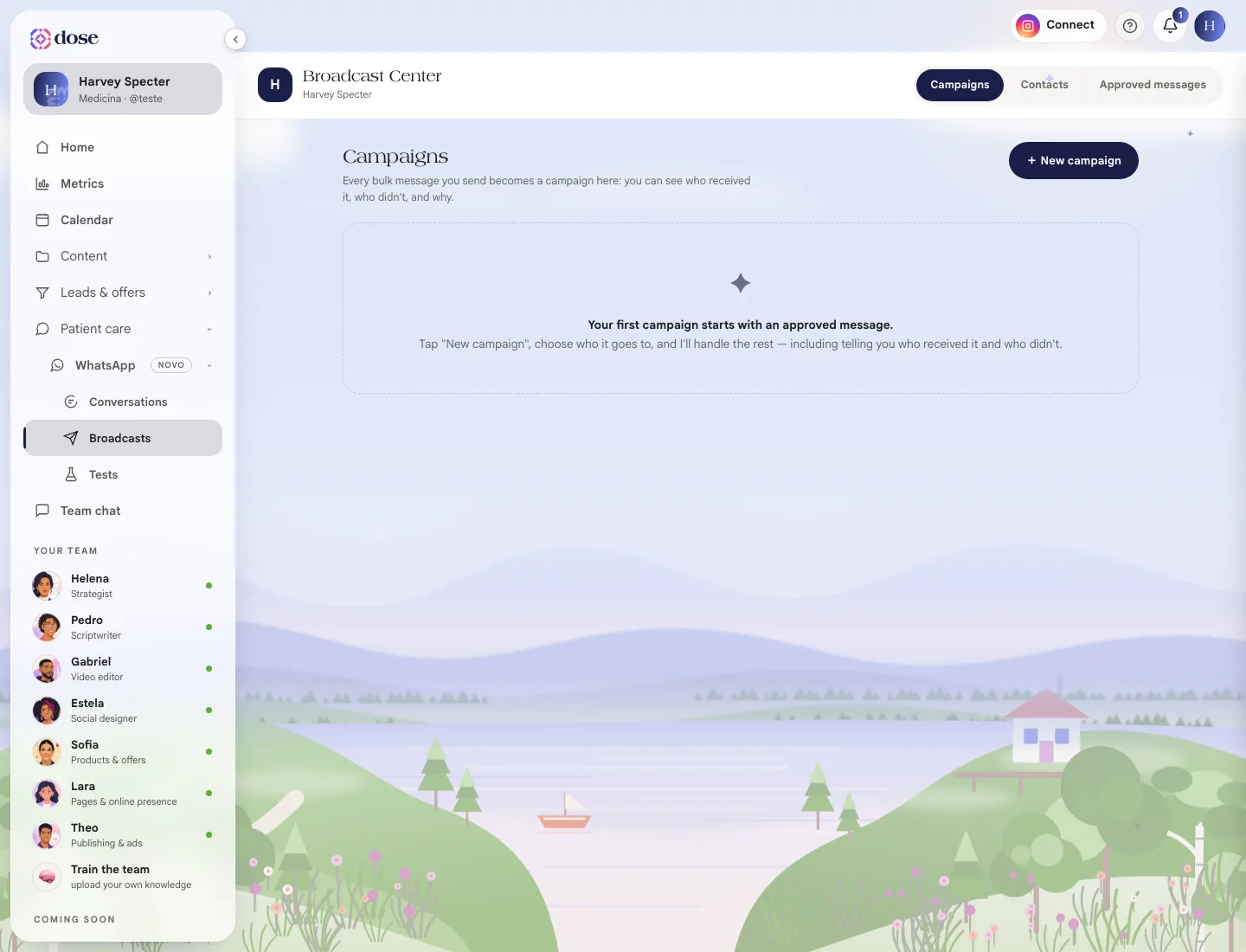
The Broadcast Center is where you send messages to many patients at once (a reminder, a schedule notice, a reactivation) and track who received them.
To open it, click WhatsApp in the menu, then Broadcasts. The screen has three tabs: Campaigns, Contacts and Approved messages.
First things first: approved messages
Section titled “First things first: approved messages”Outside the 24-hour window, WhatsApp only delivers approved messages cleared by Meta. That’s why your first campaign starts with one of them.
In Approved messages, click + New message and fill in:
- the name;
- the category: Utility (reminder, confirmation; easier to get approved) or Marketing (promotion, news, reactivation);
- the text, with an image at the top and up to 2 link buttons, if you like.
Click Send for approval ✦. The message goes through 🕐 Under review at WhatsApp and comes back ✓ Approved or ✕ Rejected, with the reason. There are ready-made starter templates: appointment reminder, appointment confirmation, patient reactivation and schedule notice.
Your contacts
Section titled “Your contacts”The Contacts tab holds your list. People get there in three ways: from a conversation, imported or added by hand.
- ⬆ Import list: paste lines in the format “Maria Silva, 555 0100” or attach a .csv or .txt file. Extra columns in the spreadsheet become fields you can use in the message;
- + New contact: one at a time;
- 🏷 Tag: group contacts so you can send campaigns by tag.
Anyone who opted out shows as 🚫 opted out and can’t be selected.
Create a campaign
Section titled “Create a campaign”Click + New campaign. There are three steps:
- Name and audience: give it a name and choose who it goes to: by tag, picking from the list or pasting numbers.
- Message: an 📄 Approved message or ✍️ Free text. Free text only reaches people who talked to you in the last 24 hours; everyone else is skipped.
- Review: check how many contacts it goes to, how much it costs and your balance. Choose Now or Schedule and click Send now ✦ or Schedule ✦.
Keep the conversation going
Section titled “Keep the conversation going”In the review, you can choose Follow up with anyone who doesn’t reply: up to 3 follow-up messages, all approved, with the send time (local time). The cost is counted for the first message.
Track it
Section titled “Track it”Each campaign shows Sent, Failed, Pending and the Total, plus a status: ⏰ Scheduled, 📣 Sending, ✓ Finished or ✕ Cancelled. For each person, you see whether the message was sent (✓), delivered (✓✓), read, failed (✕) or was skipped (⤼).
Cancel campaign stops a scheduled campaign or one that’s sending; Stop the follow-up ends the follow-up messages.