

WhatsApp receptionist
The AI receptionist answers your patients on WhatsApp 24/7: she welcomes them, answers questions about your practice and notes who wants to book. You set her up here.
The receptionist answers your patients on WhatsApp at any hour: she welcomes them, answers questions about your practice and notes who wants to book an appointment. You confirm the time. She only talks about what you’ve written down, and she never answers a clinical question: in those cases, she invites them in for an appointment.
To open it, click Patient care in the menu, then WhatsApp.
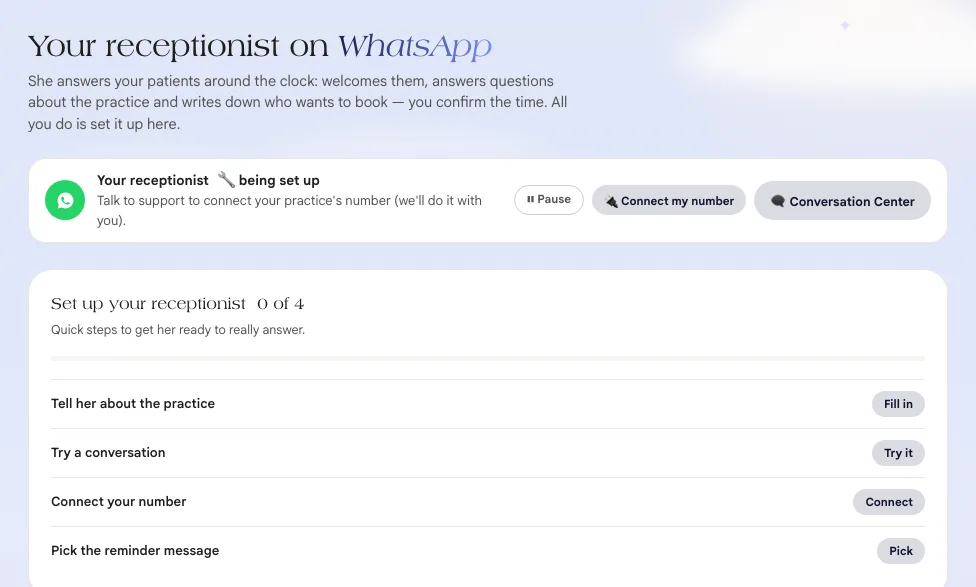
Her status
Section titled “Her status”At the top, next to Your receptionist, the status tells you whether she’s already answering:
| Status | What it means |
|---|---|
| 🔧 being set up | Your practice’s number isn’t connected yet |
| ⏸ waiting on setup | The number is connected, but Services and prices still needs filling in. Messages are kept without a reply |
| ● live | She’s answering |
| ⏸ paused | You paused her. Patients don’t get automatic replies |
Use ⏸ Pause and ▶ Turn back on when you want to handle everything yourself for a while.
The 4 steps to get her ready
Section titled “The 4 steps to get her ready”The Set up your receptionist card shows how much is left (something like “0 of 4”):
- Tell her about the practice → Fill in: the How she answers fields, below;
- Try a conversation → Try it: chat with her as if you were a patient;
- Connect your number → Connect: the request to connect your practice’s number;
- Pick the reminder message → Choose: the message that reminds patients of their appointment.
When everything is ready, the card becomes Receptionist set up and live.
Connect your number
Section titled “Connect your number”Click 🔌 Connect my number, enter Your number and click Request connection. The MyDose team does the connection together with you.
How she answers
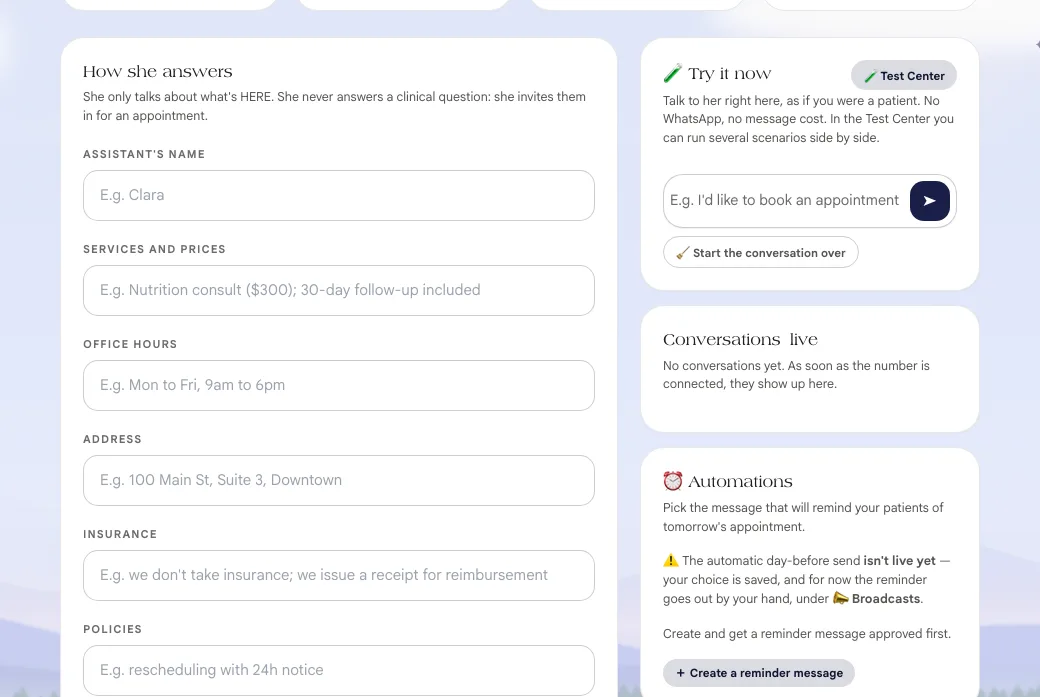
Section titled “How she answers”“She only talks about what’s HERE.” Fill it in with what patients usually ask:
| Field | What to write |
|---|---|
| Assistant’s name | How she introduces herself (e.g. Clara) |
| Services and prices | What you offer and how much it costs. Without this, she won’t start answering |
| Office hours | Your practice’s days and hours |
| Address | Where your practice is |
| Insurance | Which plans you accept, or whether you’re private pay only |
| Policies | Rescheduling, cancellations, running late |
| Extra instructions (optional) | Anything else she needs to know |
| Your personal WhatsApp | Where you get an alert when a patient asks for a human or wants to book |
| Receptionist’s hours | When she replies. Leave it empty and she replies 24/7 |
| After-hours message | What she says outside those hours |
Then click Save receptionist ✦.
The calendar
Section titled “The calendar”To offer real times, connect a calendar:
- 🩺 Use my Dose calendar: if you already see patients through the MyDose community app. You pick the community and the appointment type, and she starts offering times and booking. Cancelling and rescheduling depend on the Cancel Appointment and Edit Appointment permissions, granted by a community admin;
- 🔗 Connect Google Calendar: a step-by-step guide to share your calendar with Scale. With Google, for now she takes down the request from the patient and you confirm the time.
In The times she offers, you tell her which days and hours to look for openings. With the Dose calendar, your schedule already sets this.
Try it now
Section titled “Try it now”The 🧪 Try it now panel is a conversation with her, as if you were a patient, with no WhatsApp and no message cost. 🧹 Start the conversation over clears it and starts again. To try several scenarios, use the Test Center.
Appointment reminder
Section titled “Appointment reminder”In ⏰ Automations, pick the message that will remind patients of tomorrow’s appointment.
In this guide
Section titled “In this guide”- Conversations: live conversations, taking over and handing back to the AI.
- Broadcasts: bulk messages, contacts and Approved messages.
- Tests: test conversations with ready-made scenarios.