

Profile and your brand
Your profile is the context the team uses to write for you; your brand is the visual identity — logos, colors, fonts and photos — every artwork follows.
Everything the Scale team creates starts from two sources: who you are (your profile) and what your brand looks like (logos, colors, typography and photos). Both live on the same screen, and it’s worth spending ten minutes there before you ask for your first artwork — it’s what makes the piece look like you, not like a template.
Where to find it
Section titled “Where to find it”Your profile isn’t in the side menu. Click the circle with your photo, in the top-right corner, and choose My profile. On your phone, it’s at the bottom of Menu.
From top to bottom, the screen has:
- the profile form, with the Save changes button;
- the Your brand section, with its own Save the brand button;
- the Instagram connection and your subscription, when your plan includes those features.
Your profile
Section titled “Your profile”“This is where the team gets the context for everything it creates.” Changed your niche, your filming routine or your goal? Update it here and the team takes it into account.
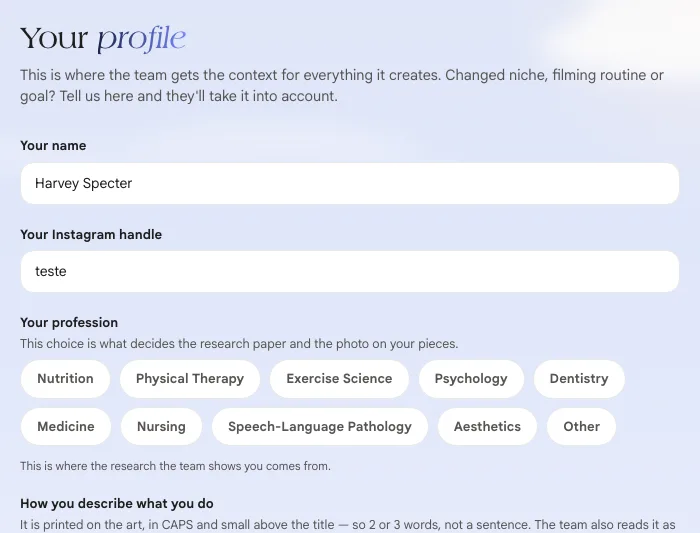
| Field | What the team uses it for |
|---|---|
| Your name and Your Instagram handle | The name and handle printed on your artwork |
| Your profession | Sets the scientific library behind the suggestions and the photos in your pieces. In Medicine, the specialty follows the official list of the CFM (Brazil’s Federal Council of Medicine) |
| How you describe what you do | Printed on the artwork, in small capital letters above the headline — so 2 or 3 words, not a sentence |
| Who is the patient you want to attract? | The audience the team writes for |
| In the piece photos, when a person shows up, she is… | A woman, A man, A man or a woman (the team alternates) or I’d rather have pieces with no person |
| Your biggest blocker today | Adherence, Scale or Time — the focus of Helena’s 30-day plan |
| How much can you film, honestly? | How many scripts the team proposes per week |
| Appointments, how you see patients and how you post today | The posting pace the team proposes |
| Revenue, goal for the next 90 days and objective | The compass for the plan. You can answer I’d rather not say right now or I haven’t decided yet |
How and what you talk about
Section titled “How and what you talk about”Open the How and what you talk about section (the counter next to it shows how many of the two fields are filled in). It defines your voice:
- Your voice — in one or two lines. The team writes in this tone. Example: “warm, but not patronizing; scientific, but not pedantic”.
- Your topics — one per line. The team uses the list so it doesn’t suggest topics from another field.
Your brand
Section titled “Your brand”“The brand book the team follows: logo, colors and type. Everything Estela creates from here on comes out like this.” The section has four cards.
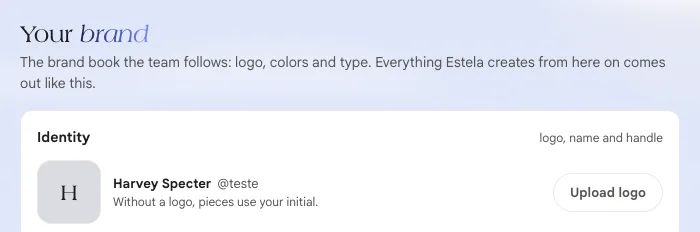
Identity: your logos
Section titled “Identity: your logos”Click Upload logo and choose a PNG or JPG file — a transparent background works best. Without a logo, your pieces use your initial.
You can have up to 10 logos (the button becomes Upload another). For each one:
- give it a name, so you know which is which (the horizontal one, the symbol-only one, the white one…);
- say which background it was made for: for light backgrounds, for dark backgrounds or any background. That way, each piece picks the right version on its own — the white logo doesn’t disappear on a light cover;
- check in pieces for the logo that goes on your artwork. Only one can be checked at a time.
Colors
Section titled “Colors”Colors start with two: the Main color (your brand color: banner, big number and background tone) and the Accent color (the second color, which sits next to the main one, on badges and details). Click the swatch to open the color picker, or type the hex code (#415FF5). Not sure where to start? Use one of the combinations under Or start from a combination.
From those two, every piece uses five colors, each in a role:
| Role | Where it shows up on the artwork |
|---|---|
| Background | the color behind everything, filling the whole artwork |
| Ink | the color of the text on that background |
| Highlight | the banner, the card and the big number |
| Support | sits next to the highlight: badge, pill, detail |
| Contrast | the text written on top of the highlight and the support |
A role marked automatic is calculated from the main and accent colors. Fill in only what your brand guide defines.
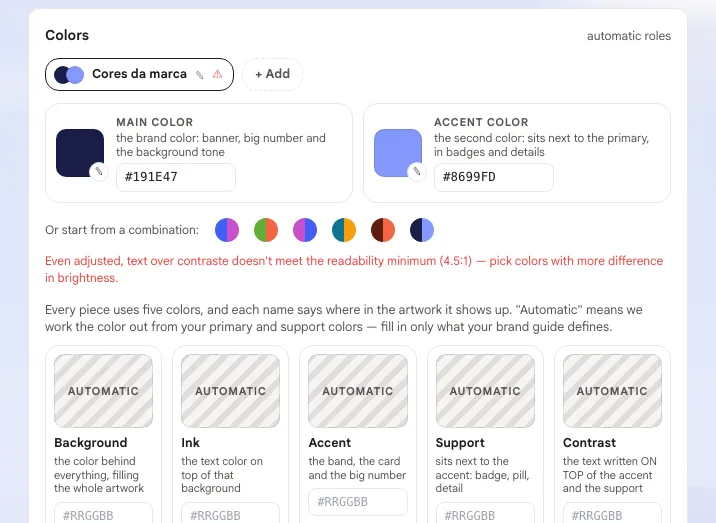
More than one palette. You can save up to 8 named palettes — for example, one for educational content and another for special dates. Use + Add to create one, the pencil to rename it and click a palette to use it. The last palette can’t be removed: every piece needs color.
Typography
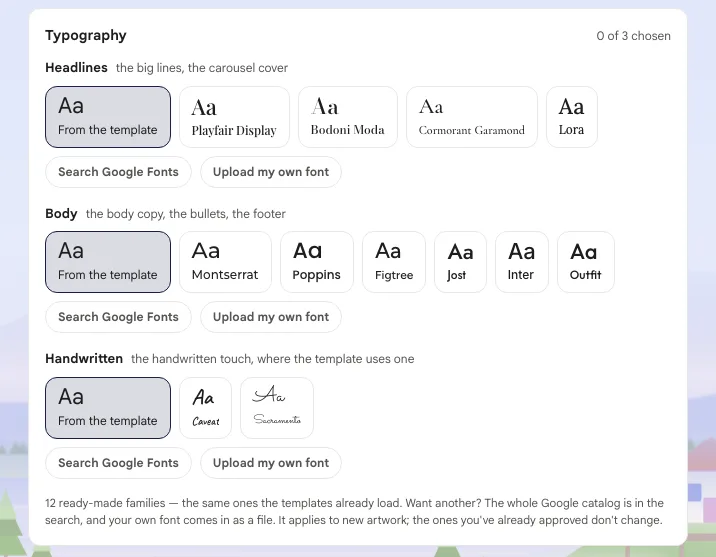
Section titled “Typography”Three roles, each with its own font:
| Role | Where it goes |
|---|---|
| Headlines | the big titles, the carousel cover |
| Text | the body, the bullet points, the footer |
| Handwritten | the handwritten accent, where the template uses one |
On each line you choose between:
- From the template — each piece uses its own template’s typography. It’s the default if you’ve never chosen.
- 12 ready-made families, the same ones the templates already use: Playfair Display, Bodoni Moda, Cormorant Garamond and Lora for headlines; Montserrat, Poppins, Figtree, Jost, Inter and Outfit for text; Caveat and Sacramento for handwriting.
- Search Google Fonts — Google’s entire catalog. Clicking a font adopts it right away.
- Upload my own font — the file from your visual identity.
The new font applies to new artwork; the pieces you’ve already approved don’t change.
Media: your photos
Section titled “Media: your photos”Media are photos that appear on your artwork as they are: your face, your office, the plate you put together. Click Upload photos to send them.
After uploading:
- give each photo a label saying what it shows — that’s how the team finds the right photo for each piece;
- mark the photos that show a person, so they can go into artwork with people;
- a photo you no longer need can be archived — it goes to Archived photos and comes back whenever you want.
After changing colors or fonts, click Save the brand. The confirmation is “Brand saved — the next pieces come out like this.”