

Artwork
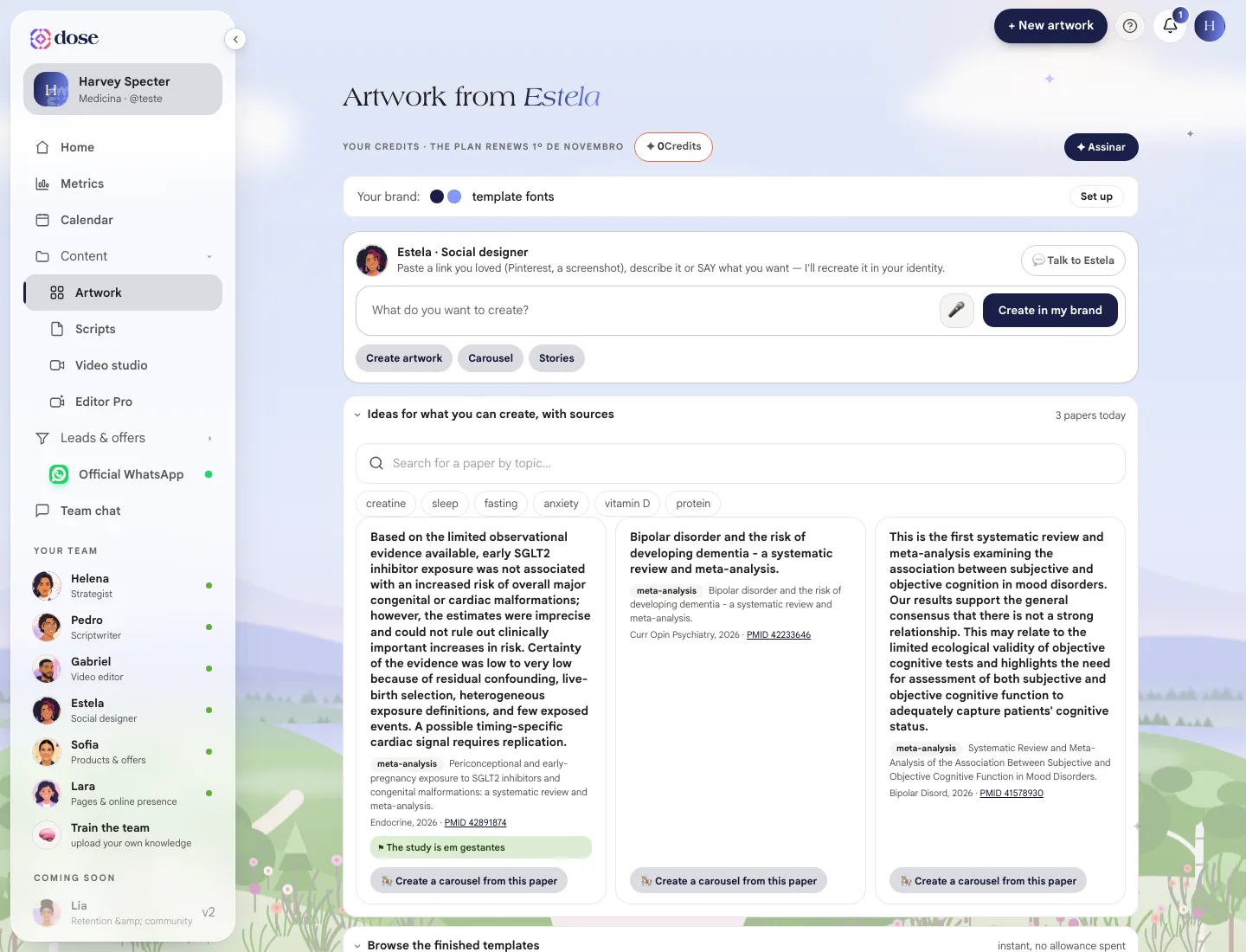
In Artwork, Estela creates carousels and stories in your visual identity from a request, a link or a reference — and everything is saved in a gallery.
Artwork is where Estela, your team’s social designer, creates your pieces: carousels, stories, sequences and e-books. Everything comes out with your color, your logo and your typography — your followers recognize the piece as yours.
To open it, click Content in the menu and then Artwork. From any other screen, the + New artwork button in the top bar also brings you here.
Two ways to start
Section titled “Two ways to start”| Way | How it works | Cost |
|---|---|---|
| Ask Estela | You describe it, paste a link or say what you want; Estela creates it from scratch in your brand | Uses credits |
| Finished carousels | You pick a template that already comes with your name and your handle; you swap the text and photos | Doesn’t use credits |
Your balance sits at the top of the screen, in the Your credits strip, along with the date your plan renews.
Ask Estela for an artwork
Section titled “Ask Estela for an artwork”- In the box, type your request — or say it, using the microphone 🎤. You can:
- describe it: “carousel about detox myths”;
- paste a link to a piece you loved (Pinterest, a post, a screenshot).
- If you like, use the shortcuts below the box — Create artwork, Carousel, Stories — to set the format.
- Click Create in my brand.
- Estela may reply with questions as buttons (the format, the number of slides, the topic). Tap the options to keep going.
- The piece shows up in the gallery when it’s ready.
For a longer conversation with Estela, use 💬 Talk to Estela, which opens Team chat.
Ideas with sources
Section titled “Ideas with sources”Not sure what to ask for? Open the Ideas for what you can create, with sources drawer. It brings today’s scientific papers from your field, summarized in Portuguese — plus topics to filter by (sleep, fasting, anxiety…). On each paper, 🎠 Create a carousel from this paper sends the request to Estela for you.
Your gallery
Section titled “Your gallery”Every artwork you create shows up in the gallery as an Instagram post, with your handle, the caption and the Preview · not published yet tag. Below each one:
- the piece’s name, the number of slides and when it was created;
- copy caption — copies the post text;
- 📅 add to the calendar — picks the day the post goes on the Calendar.
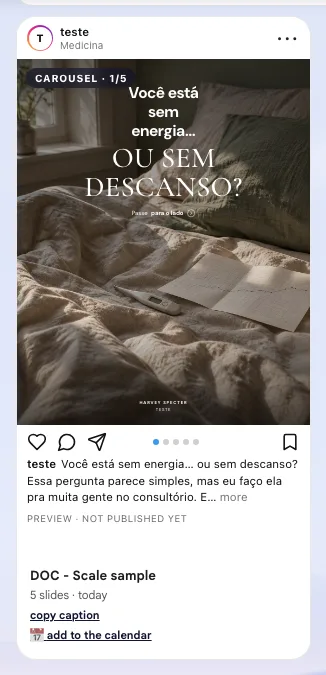
Use the type filters — All, Stories, Carousels, Sequences and E-books — as your gallery grows.
Open an artwork
Section titled “Open an artwork”Click an artwork to open the viewer. The piece is on the left, with arrows to move through the slides; on the right is the post caption.
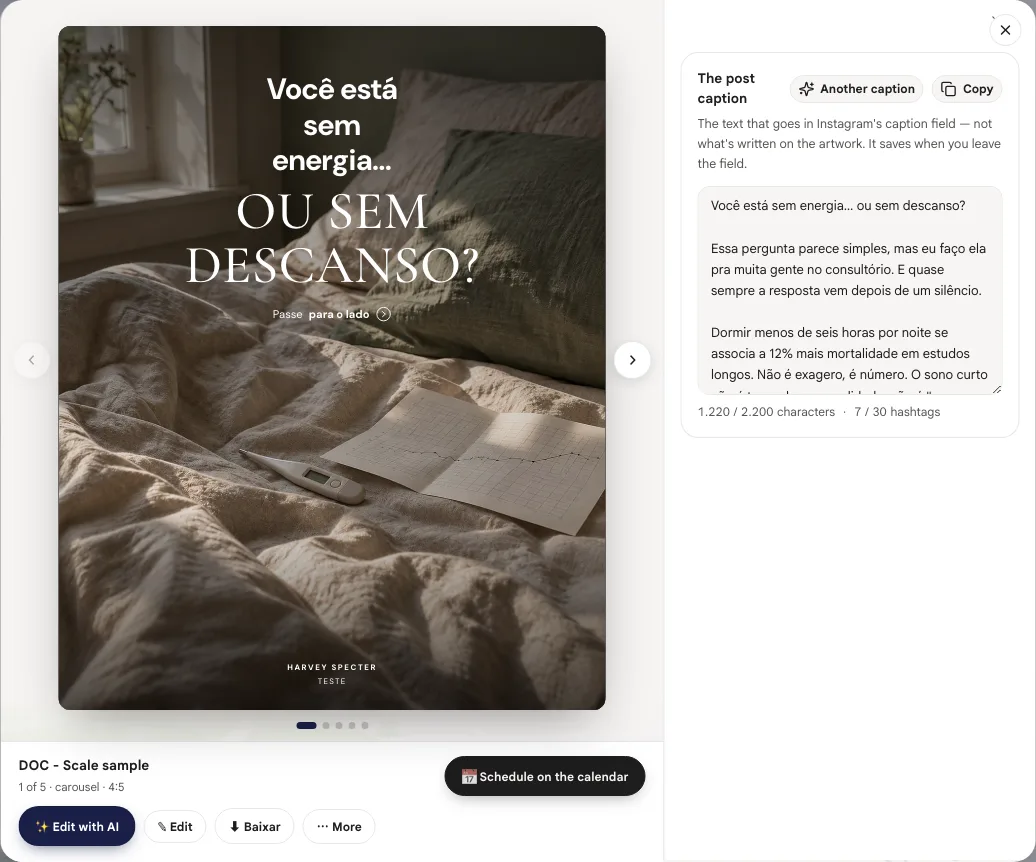
| Action | What it does |
|---|---|
| ✨ Edit with AI | You write what to change and Estela adjusts the piece |
| ✎ Edit | Opens the editor so you can change text, photos and colors by hand |
| ⬇ Download | Downloads just the slide on screen or all slides at once (zip). For an e-book, the PDF |
| ⋯ More | Other actions for the piece |
| 📅 Schedule on the calendar | Picks the day the post goes on the calendar |
| Publish to Instagram | Shows up when your plan includes publishing and your Instagram account is connected |
The post caption
Section titled “The post caption”The caption is the text that goes in Instagram’s caption field — not what’s written on the artwork. Estela already writes one; you can edit it right in the field (it saves when you click away), ask for Another caption or Copy it.
Below the field, counters show whether the caption fits on Instagram: up to 2,200 characters and 30 hashtags.
Your design line
Section titled “Your design line”The Which designer suits you best? card lets you pick a line — Editorial, Bold, Typographic or Direct — and up to 3 templates within it. From then on, every new artwork comes out with that typography and that geometry. You can change it whenever you want.
Style references
Section titled “Style references”The View and upload references drawer stores images that show the style you like. Estela looks at their light, colors and framing and applies them to new artwork — but none of them appear in the piece.
- + Upload references sends one or more images (a screenshot, a photo, a capture from anywhere);
- 🖼️ See library shows what’s already there and lets you remove what you no longer need.
In this guide
Section titled “In this guide”- Finished carousels — templates that are ready instantly, with your name and your handle, and don’t use credits.