

Editor Pro
Motion graphics–style videos — lettering, scenes and music — in your brand, with a scene plan to review before rendering.
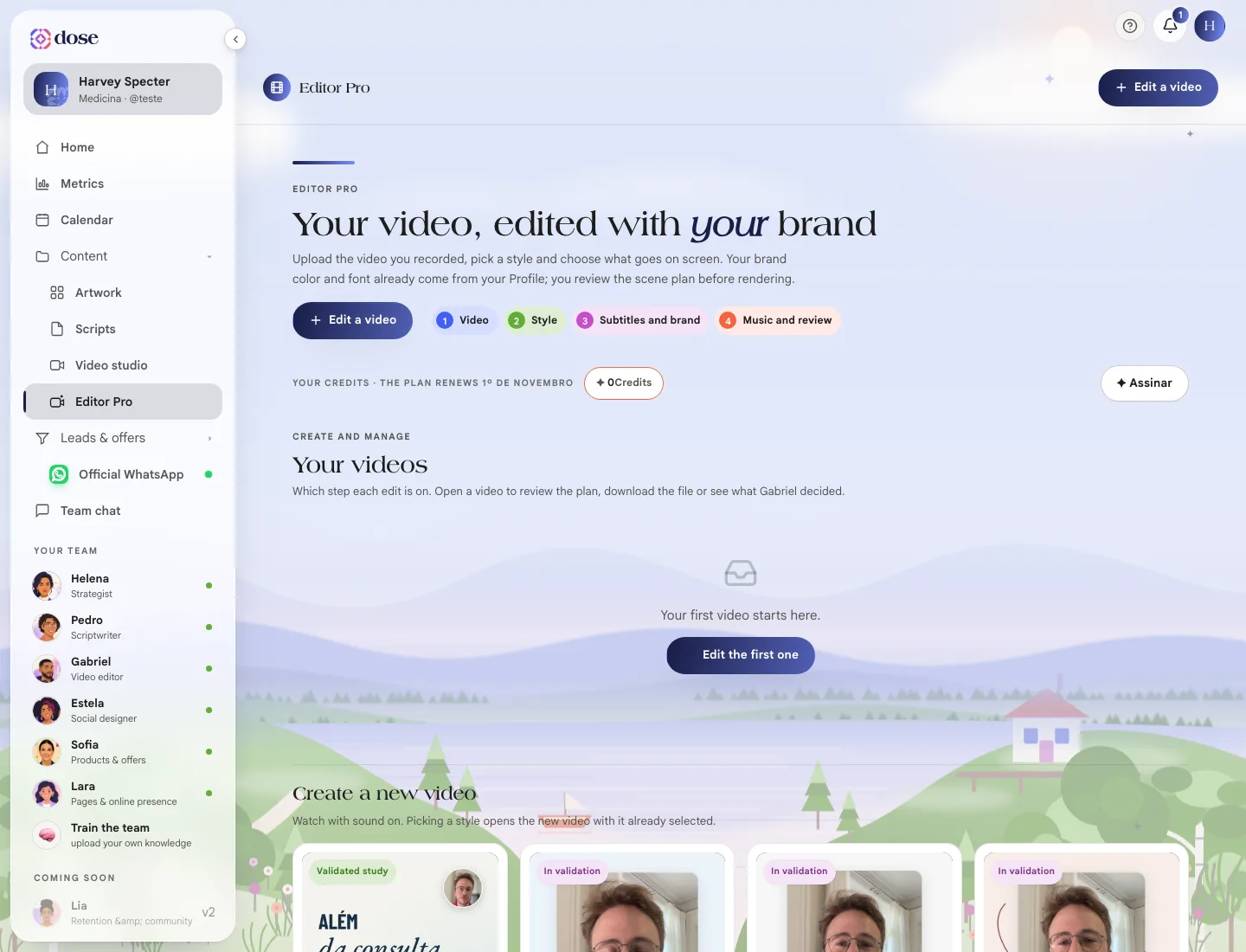
Editor Pro makes videos with more production: line-by-line lettering, animated scenes, supporting images and a soundtrack, all in your brand. You pick a style, say what goes on screen and review the scene plan before rendering.
To open it, click Content in the menu and then Editor Pro — or Edit with motion graphics in the Video studio.
The styles
Section titled “The styles”Each style sets the direction for the whole video — the lettering, the scenes and the camera movement. Watch with sound on before choosing.
| Style | What it’s like | Best for |
|---|---|---|
| Motion storytelling | Immersive scenes, line-by-line lettering and a soundtrack | Explaining a treatment or telling a case, with a beginning, middle and end |
| Clinical | Cool blue, cards and screens to explain clearly | Showing your practice, your schedule and the way you see patients |
| Clarity | Medical green, diagrams and condensed lettering | Busting a myth or teaching a concept step by step |
| Presence | Rosy paper, serifs and a warm pace | A testimonial, a caring message, a personal introduction |
Each style’s badge says how much it has been tested: Validated study or In validation. All four can be used.
Edit a video
Section titled “Edit a video”Click Edit a video (or Use this style on one of the styles). There are four steps:
1. Video
Section titled “1. Video”Upload the video you filmed — on your phone, vertical. It can be one file or several, in the order they go into the edit. The voice comes from this video.
2. Style
Section titled “2. Style”Choose the style and what goes on screen:
- Just you — you on screen, with the style’s lettering and cards;
- You + images from your library — a second video of yours goes alongside, in split screen, with no audio. It can be up to 100 MB and 15 minutes, and you confirm you have permission to use it;
- You + animated screens — screens like a schedule, WhatsApp and medical records come in when your speech calls for them. None of them show real data.
Prefer no style? Start from scratch, with just the subtitles you choose.
3. Subtitles and brand
Section titled “3. Subtitles and brand”Combine one to four lettering styles and adjust the text and highlight size, position (center, slightly below, lower third) and colors.
4. Music and review
Section titled “4. Music and review”Choose music (from the library, picked by the editor, or no music), sound effects, movement and the color look. Check the summary and click Create edit — the credit cost shows on the button, and it’s the same as an edit in the Studio.
Review before rendering
Section titled “Review before rendering”When the plan is ready, the video moves to Your turn to review. Open it and check it, tab by tab:
| Tab | What you adjust |
|---|---|
| Cuts | The clips kept, with their start and end |
| Subtitles | The words (without touching the timing), color, size and position |
| Scenes | The layout, the lettering and the supporting images |
| Audio and color | The music, the effects and the color grading |
| Check | The final check |
The player shows the raw video — it doesn’t simulate the final result. Make your adjustments, click Save review and then Approve and render.
Your videos
Section titled “Your videos”In Your videos you see which step each edit is on: In queue, Editing, Your turn to review, Done or Failed. A finished video has Download the final video and also shows up in the Studio gallery.
Your library of music, effects and images
Section titled “Your library of music, effects and images”Gabriel picks music, effects and images based on the context of what you say. In Your library of music, effects and images you add your own — with a name, keywords and confirmation that you have a license to use it (or that the media is yours). The library is private to your account.