

Finished carousels
Carousel and story templates that already come with your name and your handle. You swap the text, photos and colors — instantly and without using credits.
Not every piece needs to start from scratch. Templates are carousels and stories that are already designed, open with your name and your handle, and just wait for your text and your photos.
They’re ready instantly and don’t use credits — the template does the design, not Estela. It’s the fastest way to have a post ready today.
Find the templates
Section titled “Find the templates”- Open Content → Artwork.
- Open the Browse the finished templates drawer (“instant, no allowance spent”).
- Click See the templates.
The Start from a template gallery shows every template. At the top, filter by category — Editorial, Statement, Question, Data, Quiz, Recipe, Protocol and many more — and pick the preview format: Carousel or Story.
Each card tells you what the template is like: how many slides it has and how many photos you can swap (for example, “5 slides · 2 photos you can swap”).
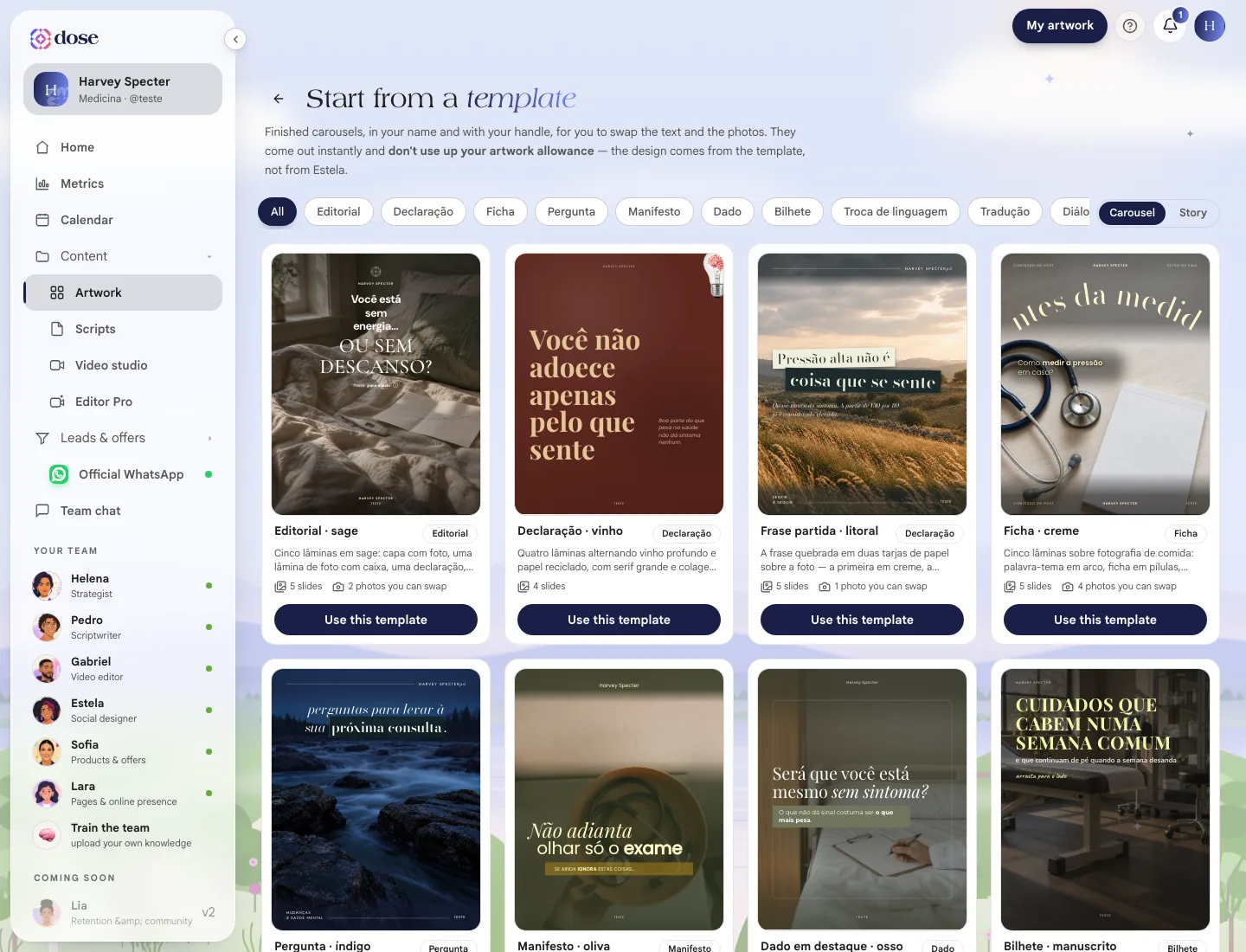
Found one? Click Use this template. The piece is created in your Artwork gallery and the editor opens right after.
The editor
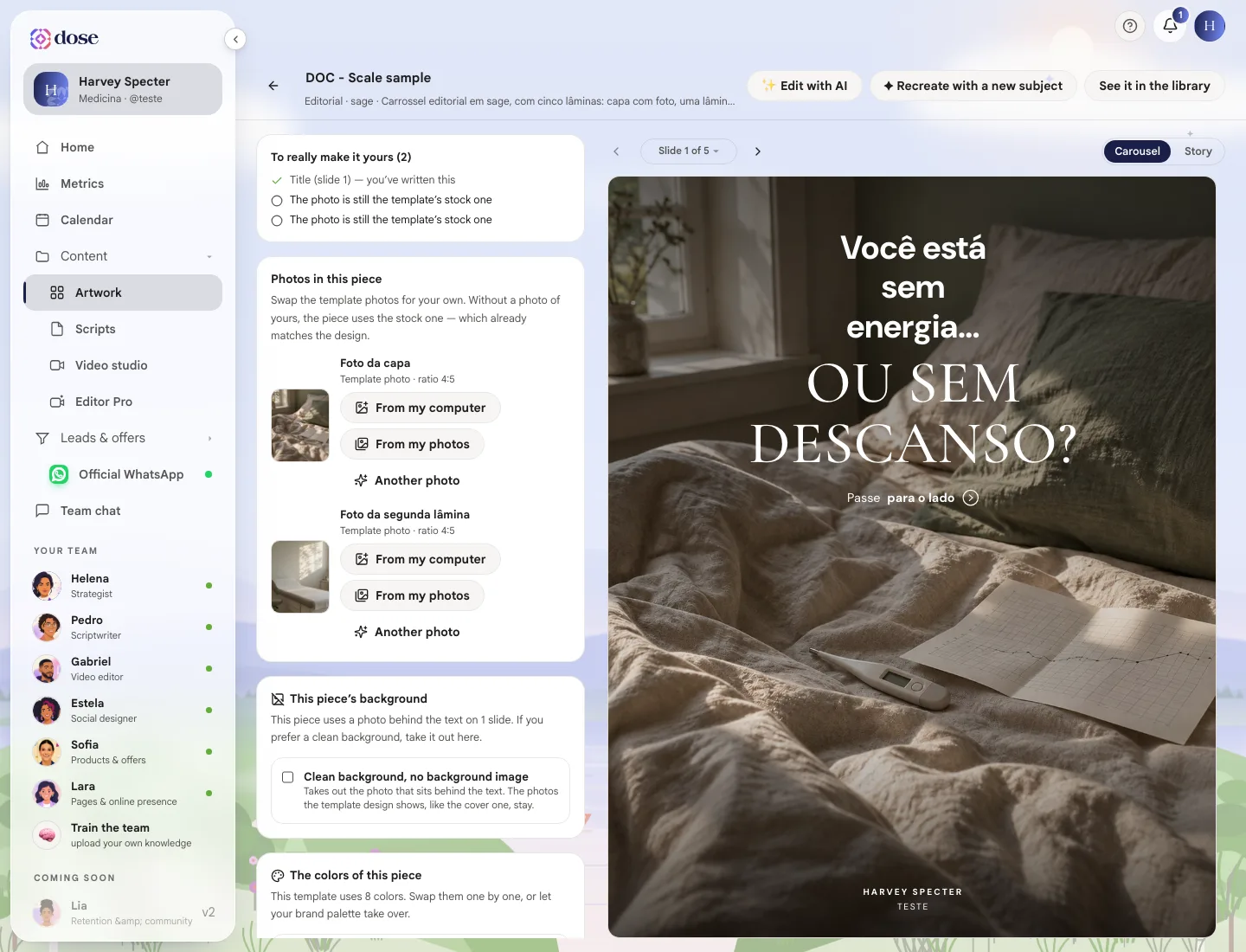
Section titled “The editor”The editor shows the piece’s preview on one side and what you can change on the other. Below the preview, Slide 1 of 5 tells you which slide you’re on — use the arrows to move through them — and the Carousel / Story switch changes the format of the same piece.
To really make it yours
Section titled “To really make it yours”At the top of the editor, the To really make it yours list shows what’s still as it came from the template: a title that’s still the template text, a photo that’s still the stock one. The number in parentheses is how much is left. Once everything has been swapped, it turns into Your way ✓.
You don’t have to clear the list — the piece can already be used. It just helps you not forget anything.
Photos in this piece
Section titled “Photos in this piece”Every photo the template lets you swap comes with three options:
| Option | What it does |
|---|---|
| From my computer | Uploads a photo of yours. It’s saved in your photos so you can use it again |
| From my photos | Uses a photo you’ve already uploaded, including the ones in Media in your profile |
| Another photo | Asks for a new photo, generated just for that slide. It’s free and arrives in 1 to 2 minutes |
Without a photo of yours, the piece uses the stock one — which already matches the design. After swapping, you can crop the photo on the slide or go back to the Template photo.
This piece’s background
Section titled “This piece’s background”Some templates use a photo behind the text. If you prefer a plain background, turn on Clean background, no background image. Photos that are part of the design — the cover photo, for example — stay.
This piece’s colors
Section titled “This piece’s colors”Each template has its own palette, and the editor shows all of its colors (backgrounds, text, highlights). You can:
- swap color by color, clicking each one. The screen remembers the original, and Back to the template colors undoes everything;
- turn on Use my brand colors so the background, ink and highlight switch to your palette. Contrast is adjusted automatically so the text stays readable.
If the brand option looks locked, it’s because your brand doesn’t have colors yet — pick them in Profile and your brand.
The text
Section titled “The text”Type over the template text. Each field saves when you click away, and the piece next to it redraws.
- Your brand — the name, specialty and handle that appear on the piece.
- Slides — the fields for each slide, in the order people swipe: kicker, title, highlight, text, list items.
Each field says where the text appears and how many characters fit (for example, “14/34”). Go over the limit and the counter warns you.
The slides
Section titled “The slides”Click Slide 1 of 5 ▾ to see the options for the slide and the piece. In Choose slides you remove slides, change the order and add a middle slide (the cover stays unique). Then click Apply the new order.
Each template has a minimum number of slides. If you try to remove more than allowed, the button turns off and the screen tells you how many need to stay.
The piece name
Section titled “The piece name”The Piece name field, at the top, is just for you to find the artwork later in the gallery. It doesn’t appear in the post.
Edit with AI and recreate
Section titled “Edit with AI and recreate”Two actions at the top of the editor ask the AI for help:
- ✨ Edit with AI — you write what you want to change and Estela adjusts the piece;
- ✦ Recreate with a new subject — keeps the template design and rewrites all the text about the subject you give it.
When you’re done
Section titled “When you’re done”See it in the library takes you back to the Artwork gallery, where the piece already is. From there, open the piece to download it, edit the caption or schedule it on the calendar — see Open an artwork.