

Team chat
Talk to every specialist on your team in one place. Ask your way, use the ready-made suggestions and let them pass the baton to each other.
Team chat is where you talk to the Scale specialists. You don’t need to know who to ask: talk to Helena and she hands it to whoever does it, with the context. And each of them knows what the others did — Gabriel knows Pedro’s script, Helena follows up on what got stuck.
To open it, click Team chat in the menu.
Who to talk to
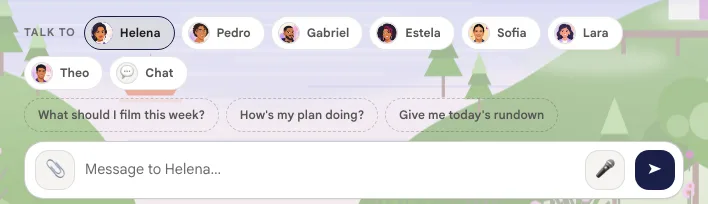
Section titled “Who to talk to”The Talk to chips choose who you’re talking to. When an agent hands the work to another, the chat switches on its own — ask Helena for a script, and Pedro takes over.
| Agent | Role | Example requests |
|---|---|---|
| Helena | Strategist | “What should I film this week?”, “How’s my plan doing?” |
| Pedro | Scriptwriter | “I want a new script”, “Give me 5 topic ideas” |
| Gabriel | Video editor | “I filmed it, I want to edit”, “How’s my edit coming along?” |
| Estela | Social designer | “I want a carousel”, “Variations on the last piece” |
| Sofia | Products & offers | “I want to build my follow-up plan”, “I want to create an ebook” |
| Lara | Pages & online presence | “I want a link in bio”, “How’s my page doing?” |
| Theo | Publishing & ads | “Schedule this post for tomorrow morning”, “What’s scheduled?” |
| Chat | Open conversation | “Help me think through an idea”, “Go over this text with me” |
Suggestions and buttons
Section titled “Suggestions and buttons”Each specialist offers their most useful requests right above the field — tap a suggestion and watch it happen.
Replies also come with buttons for the next steps (approve a script, open the Studio, ask for a variation). Click it, and it’s done.
Type, talk and send a photo
Section titled “Type, talk and send a photo”- Write like in any chat: “I need a carousel about sleep”, “what should I post tomorrow?”.
- The 🎤 lets you dictate instead of typing.
- The 📎 attaches a photo. Without text, the message goes as “I sent a photo of myself.”; with the photo attached, the field asks “What should I do with this photo?”.
If a message wasn’t sent, it shows up with ↻ Try again and Discard.