

Create an account and first sign-in
How to create your Scale account, sign in, recover your password and go through the first steps that set up your team.
Scale lives at scale.mydoseapp.com. The account is the same as your MyDose account: one email and one password.
Create the account
Section titled “Create the account”- On the sign-in screen, click No account yet? Create one.
- Fill in Name, Email and Password (at least 8 characters).
- Click Create account.
If the email already has an account, the screen goes back to Sign in and asks for your password.
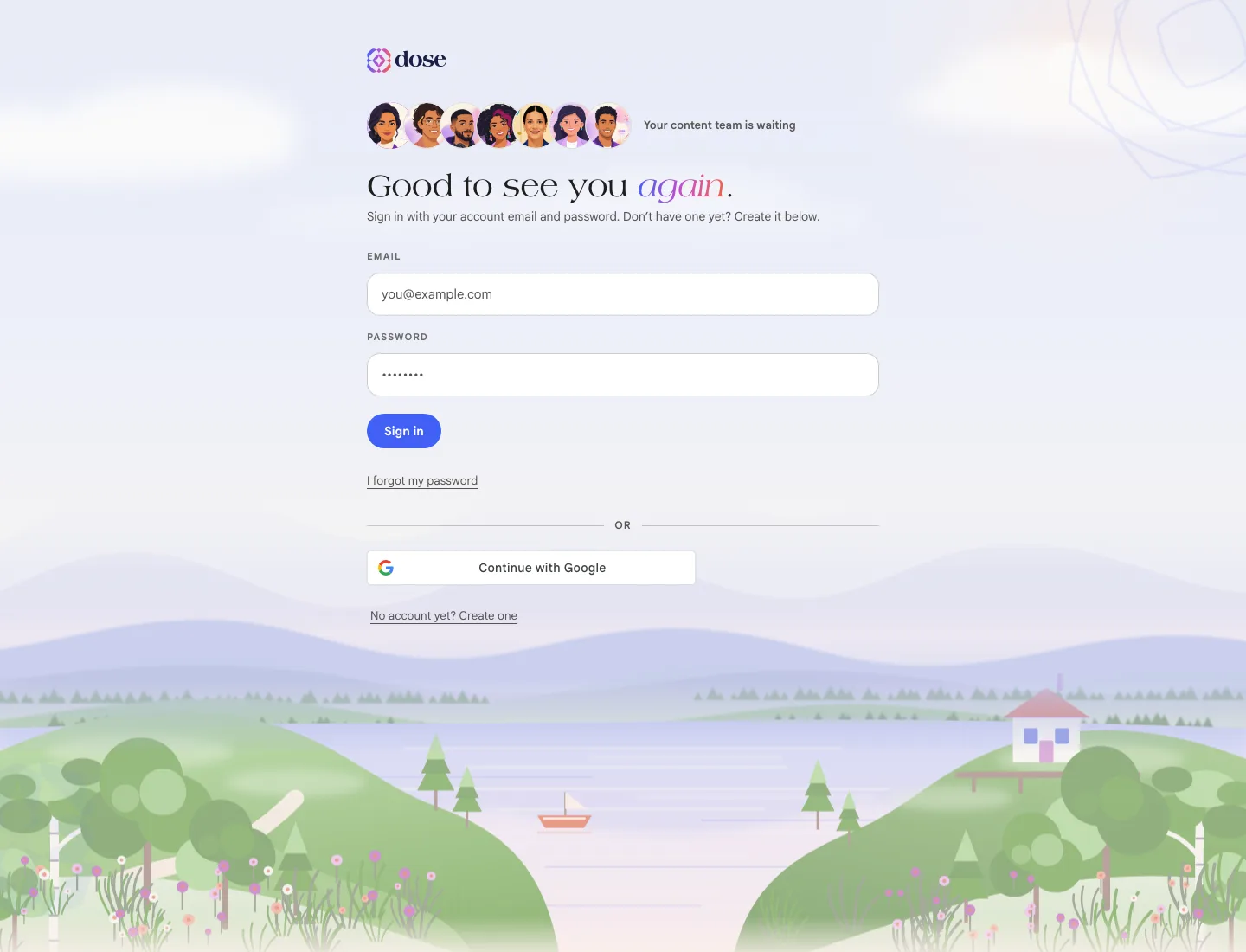
Sign in
Section titled “Sign in”Type your Email and Password and click Sign in. You can also continue with Google.
If your session expires, the screen lets you know and you sign in again to pick up where you left off.
I forgot my password
Section titled “I forgot my password”- Click I forgot my password.
- Type your account email and click Send me the link.
- Open the email, click the link and create your new password (twice, to double-check). Click Save and sign in.
If the link in the email doesn’t open properly, the screen offers Ask for a new link.
Bought on the website?
Section titled “Bought on the website?”Once your payment is approved, the screen asks for just one thing: Create your password. When you click Set password and sign in →, your month opens with the plan already active.
The first steps
Section titled “The first steps”The first time you sign in, four quick steps introduce you to the team. Use Continue → to move forward and ← Back to fix something.
| Step | What you tell us |
|---|---|
| Your content team starts now | Your name, your Instagram handle, your field and the patient you want to attract |
| What’s holding you back the most today? | Adherence, Scale or Time — and how much you can film. Helena uses this to build the 30-day plan |
| Where you are and where you want to go | Revenue, 90-day goal and objective. It’s optional: Skip for now |
| Now your brand | Your brand colors and your logo (optional) |
At the end, click Create my board ✦. While the team gets organized — about 40 seconds — the screen shows what each of them is doing. Then you land in Team chat.
Tours on every screen
Section titled “Tours on every screen”The first time you visit each area, a short tour starts on its own and highlights each part of the screen. Use Skip tour to close it. Once you’ve seen it, it won’t come back on its own, but you can take it again any time from the ? button in the top bar → Take the tour of this screen.
Without a plan: what you can do
Section titled “Without a plan: what you can do”Every new account starts on the sample plan, with a few credits to try things out. With it you can already create and download content. Publishing to Instagram, the WhatsApp receptionist and ads come with a plan — see Plans, credits and subscription.