

Pages
Build sales, lead capture, quiz and link-in-bio pages from templates, with your brand, and publish them at your own address. Lara fine-tunes them with you.
In Pages you build your online presence: a page to sell your appointment, capture contacts with a free resource, a quiz, an institutional site, or the page that goes in your Instagram bio. Every page starts with your logo and your colors, and Lara (Pages & online presence) adjusts the rest by chatting with you.
To open it, click Leads & offers in the menu, then Pages.
Pick a template
Section titled “Pick a template”The first time, the screen shows Your online presence starts here and the template gallery. Filter by goal:
| Goal | What it’s for |
|---|---|
| Sell | Appointment, plan, ebook, course, paid event |
| Capture contacts | Free resource, waitlist, live session |
| Quizzes and calculators | Interactive lead magnets that turn into contacts |
| Institutional | Who you are, what you treat, how to book |
| Link in bio | The page that goes in your Instagram bio |
And, if you like, by field: Mental health, Nutrition or Medicine.
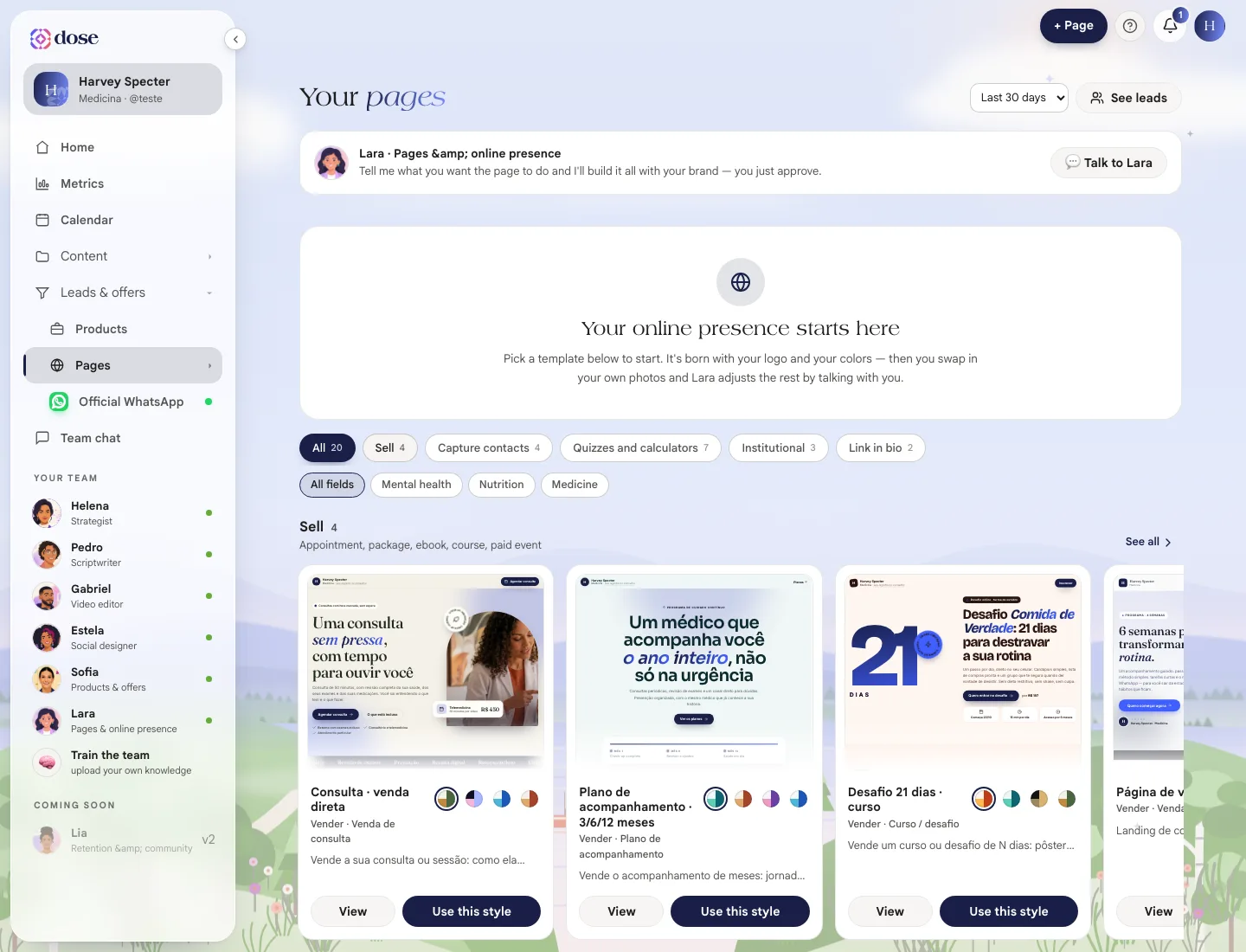
Click View to open the preview. There you switch between desktop and phone and pick the Style (the colors, fonts and sample photo change together). You can change the style later, or ask Lara to use your brand colors.
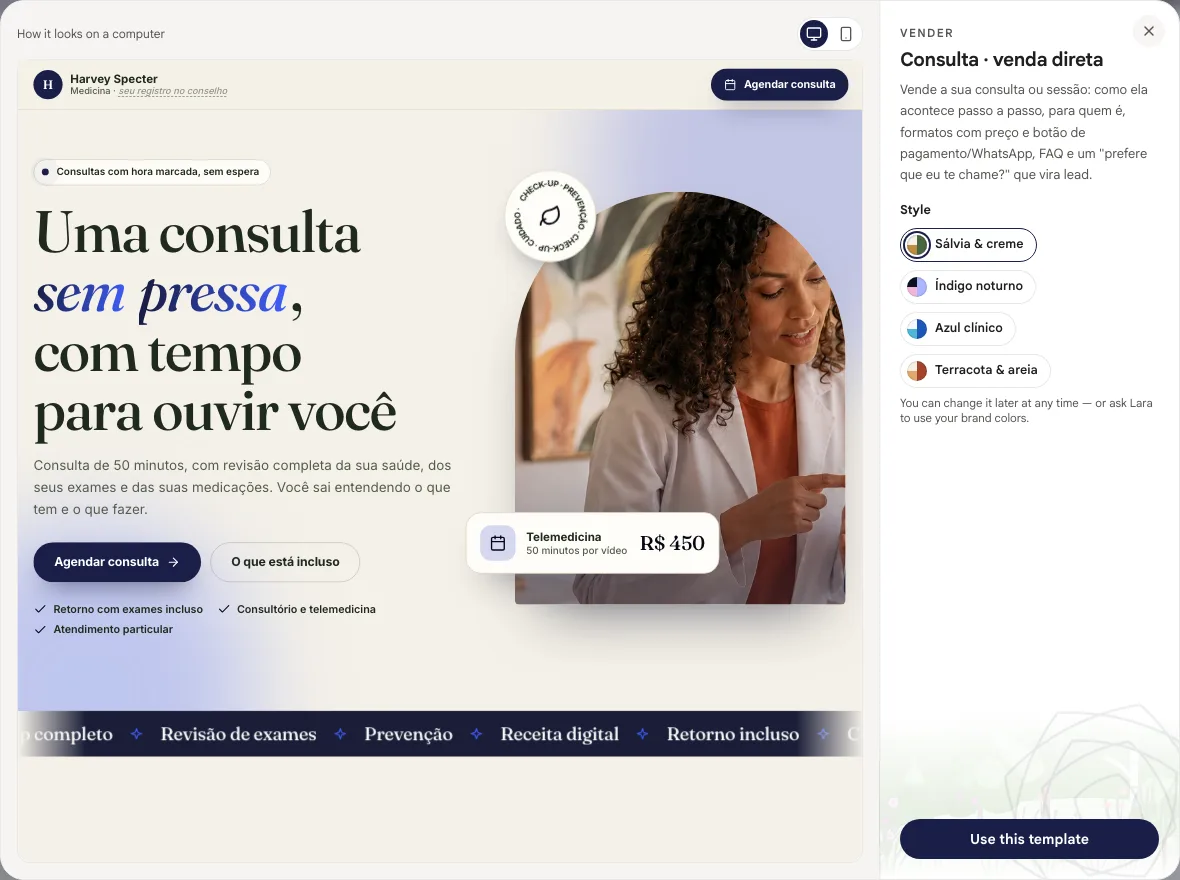
Like it? Use this template (or Use this style) creates the page and opens the editor.
Edit the page
Section titled “Edit the page”The editor has the Page, Text, Links, Products, Photos and Numbers tabs.
- Page style: changes the colors, fonts and sample photo all at once. The Use my brand colors toggle recolors the whole page with your palette.
- Products: your products on sale can go into the products section, with the payment button.
- WhatsApp button: shows a chat button with your number (available when WhatsApp is on your plan).
Ask Lara for changes
Section titled “Ask Lara for changes”In the Ask Lara for a change… field, type (or say) what you want to change: “change the title to…”, “remove the testimonials section”. After each change you can Compare versions (before and now) or Undo the last change. For a longer conversation, open it in Team chat.
Publish
Section titled “Publish”Click Publish and choose the page address: lowercase letters, numbers and hyphens only, 3 to 40 characters. The screen shows what the link will look like before you click Publish now.
To take it down, use Take offline. The address stays reserved for you. To bring it back, Put it back online.
Before you publish, the page shows what’s left to finish it (To finish it:), like a way for people to reach you and your photo at the top.
Track the numbers
Section titled “Track the numbers”Each page shows the numbers for the period you choose (7, 30 or 90 days): views, visitors, link clicks, contacts and the conversion rate, meaning how many visitors left their contact.
Anyone who filled out a page’s form shows up in Leads.
In this guide
Section titled “In this guide”- Leads: who left their contact on your pages, and how to message them on WhatsApp.