

Video studio
Send your raw video and Gabriel cuts the silences, adds subtitles in your brand and hands it back ready to post. It all starts in the Video studio.
In the Video studio you send the video you filmed — straight off your phone — and Gabriel, your team’s editor, cuts the silences, adds subtitles in your brand and hands it back ready to post.
To open it, click Content in the menu and then Video studio.
The editing path
Section titled “The editing path”Every edit goes through five steps, shown at the top of the screen:
- Upload — the raw video and the template;
- Transcribe — your speech becomes text;
- Review the cut — you approve the clips;
- Subtitles and cover — in your brand;
- Ready to post — download or schedule.
New edit
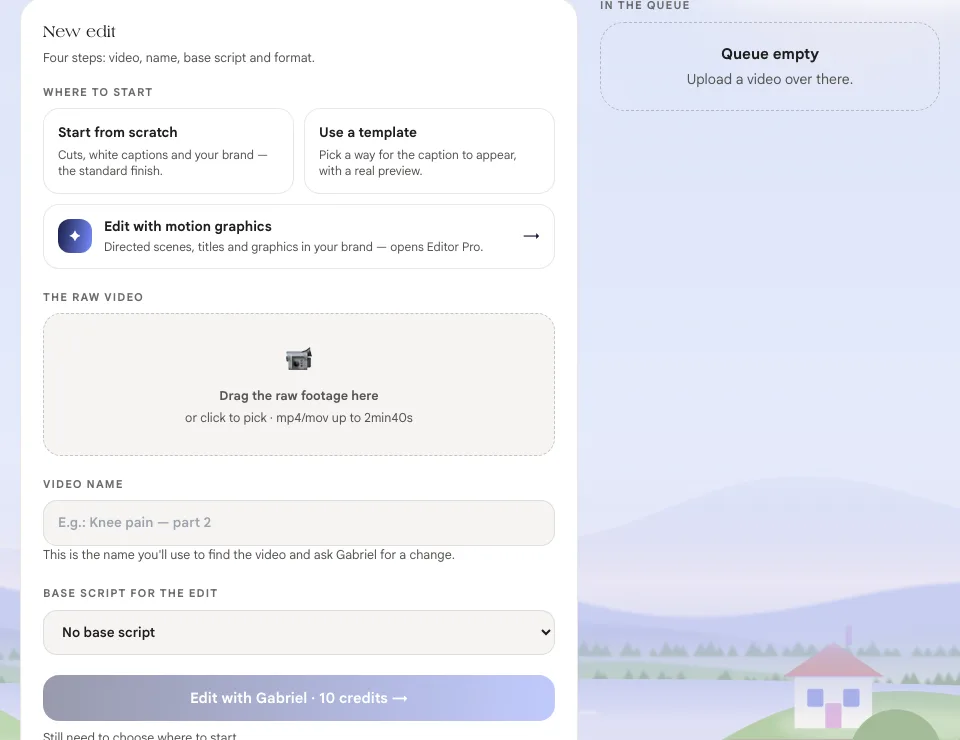
Section titled “New edit”The New edit form has four parts: the starting point, the video, the name and the base script.
1. Where to start
Section titled “1. Where to start”- Start from scratch — cuts, white subtitles and your brand. The standard finish;
- Use a template — choose how the subtitles appear, with a real preview: Clean subtitles, Fast cut, Brand band, Impact, Split screen or YouTube 16:9 (horizontal, for long videos);
- Edit with motion graphics — opens Editor Pro.
2. The raw video
Section titled “2. The raw video”Drag the video into The raw video area or click to pick it.
The upload keeps going even if you leave the screen.
3. The name
Section titled “3. The name”The Video name is how you find the video later and ask Gabriel for changes. It comes filled in with the file name or the script name; change it if you like.
4. The base script
Section titled “4. The base script”In Base script for the edit, pick the script you filmed (or No base script). With the script, Gabriel knows what’s the hook, the body and the call to action, and cuts better. If you got here through the 📹 Filmed it, use in the Studio button on a script, it’s already picked.
Send it to Gabriel
Section titled “Send it to Gabriel”Click Edit with Gabriel · 10 credits →. While something is missing, the button stays off and the screen tells you what’s missing.
Follow the queue
Section titled “Follow the queue”In In queue, each edit shows the step it’s on and a progress bar. Gabriel lets you know in the chat when he finishes a step.
When the cut is ready, the card tells you Gabriel explained his choices in the chat. Read it and agree? Click ✅ Go ahead so he moves on to the subtitles and cover.
If an edit gets stuck, the card shows the reason and Gabriel is already notified. Use Talk to Gabriel to sort it out.
Finished videos
Section titled “Finished videos”Ready holds your edited videos, with the format, length and date. On each one:
- ⬇ Download — the video as MP4;
- Adjust — asks Gabriel for a change, in the chat;
- Turn into stories — asks Estela for stories made from the video;
- add to the calendar — sets the post day. To publish, use Schedule on the Calendar card;
- the pencil renames the video.
In this guide
Section titled “In this guide”- Editor Pro — styled videos with lettering, scenes and music, with a review before rendering.