

Products
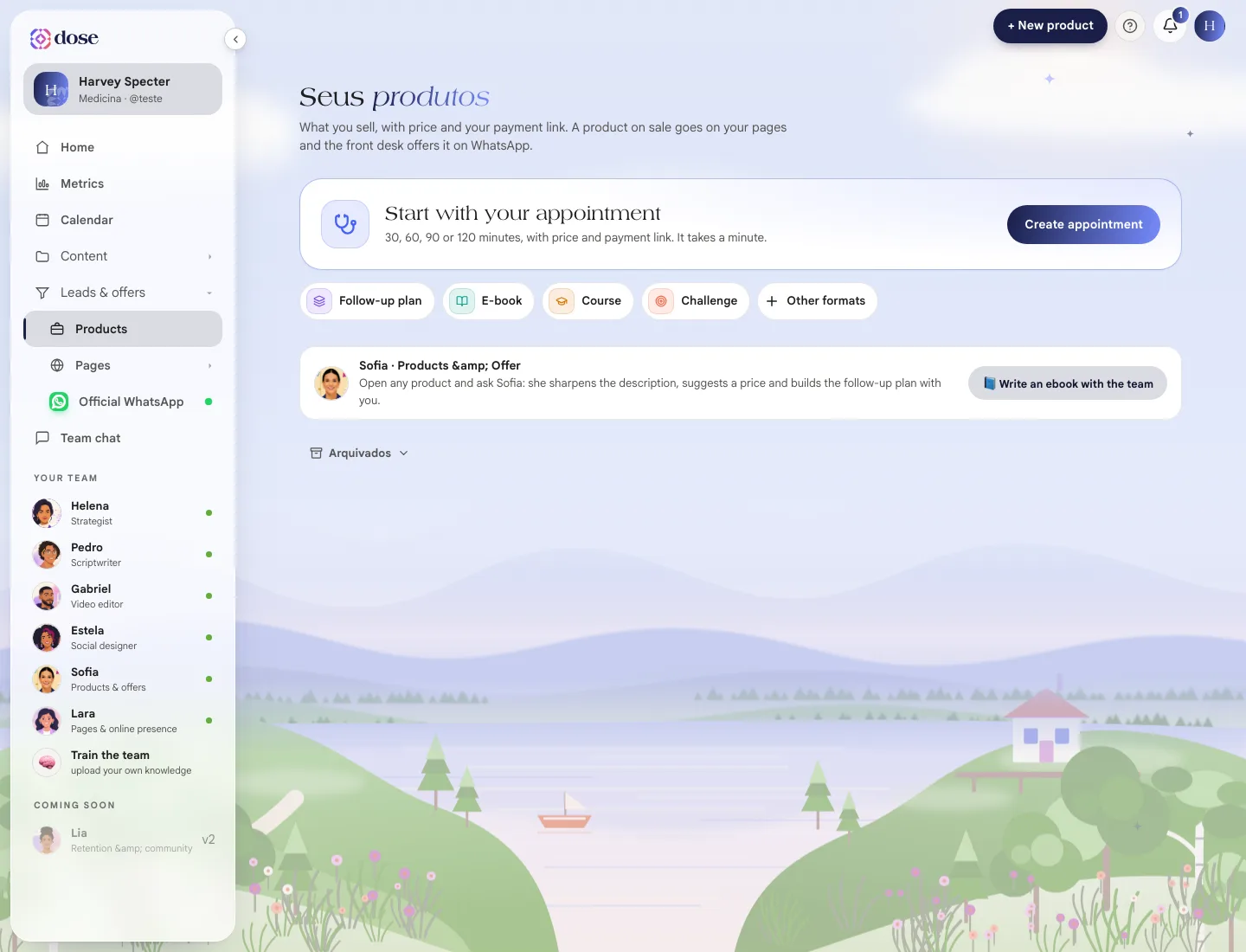
Add what you sell (appointment, care plan, ebook, course, challenge) with a price and your payment link, so it shows up on your pages and on WhatsApp.
In Products you add what you sell, with a price and your payment link. A product that’s on sale goes into your pages, and the receptionist offers it on WhatsApp when it fits the conversation.
To open it, click Leads & offers in the menu, then Products.
Create your first product
Section titled “Create your first product”The first time, the screen suggests starting with the simplest one: Start with your appointment. “30, 60, 90 or 120 minutes, with price and payment link. It takes a minute.” Click Create appointment.
For other formats, use the buttons next to it: Care plan, Ebook, Course, Challenge or Other formats (event, live session, workshop…).
The product editor
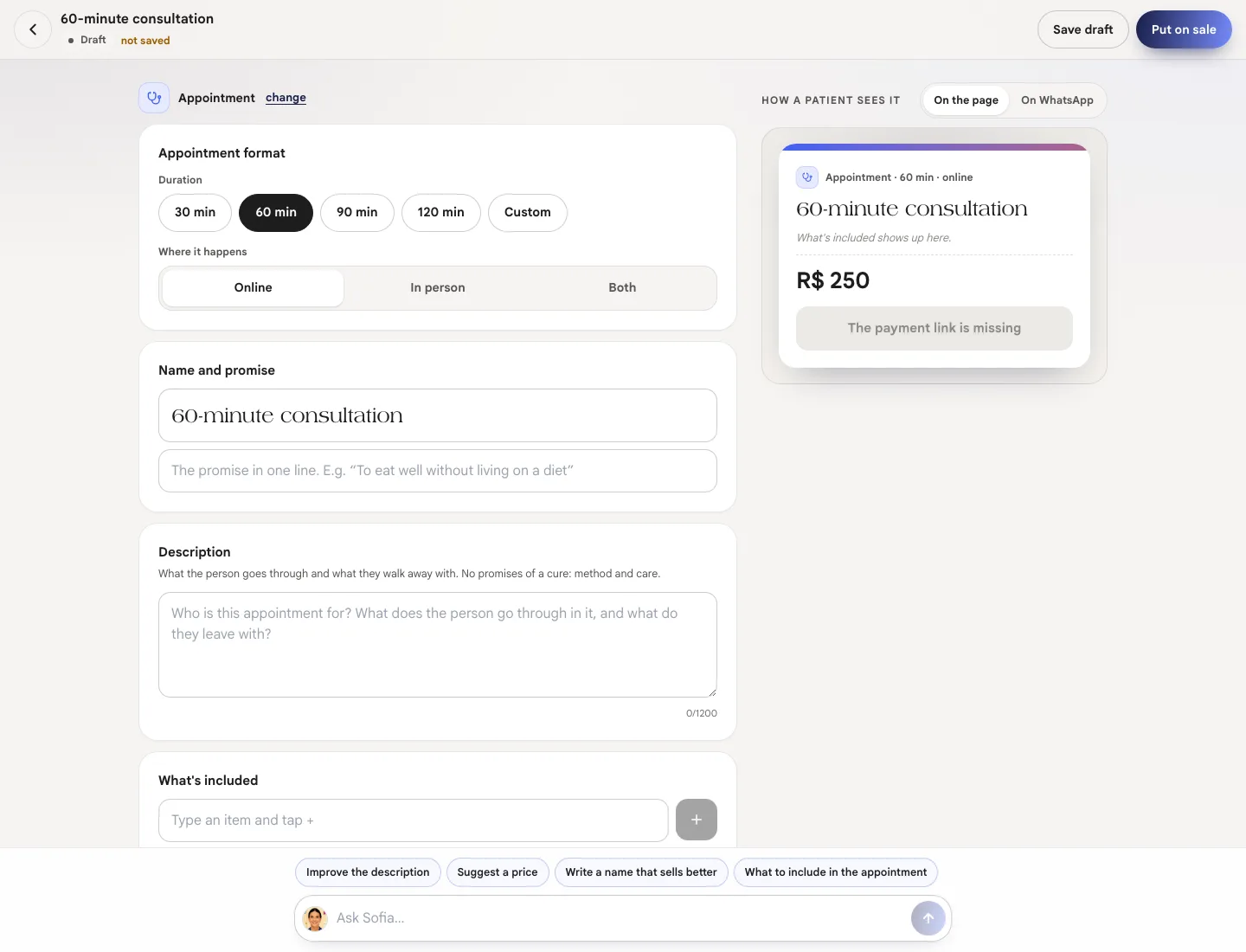
Section titled “The product editor”The fields are on the left. On the right is the How a patient sees it preview, with the On the page and On WhatsApp tabs. It updates as you type.
| Section | What to fill in |
|---|---|
| Appointment format | Appointments only: the Duration (30, 60, 90, 120 min or Custom) and Where it happens (Online, In person or Both) |
| Name and promise | The product name and a one-line promise |
| Description | What the person goes through and what they walk away with. “No promises of a cure: method and care.” |
| What’s included | The product’s items. There are ready-made suggestions to get you started |
| Price | The amount and How she pays: one-time or recurring payment |
| Payment link | Your gateway’s link. Use Paste and Try it to check it |
| Where it appears | On your pages and On WhatsApp |
Care plan
Section titled “Care plan”A plan has two extra parts:
- Stack the plan: the items that make up the care plan. Each new item also becomes a standalone product, as a draft;
- The plan’s offers: the cycles (3, 6, 12 months…), each with its monthly fee, the discount off the standalone price, and the payment link for the cycle. Set up the matching installment charge or subscription in your gateway.
Put it on sale
Section titled “Put it on sale”To sell, a product needs a name, a price and a payment link (for a plan, at least one offer with a price and a link). If something is missing, the screen tells you what.
Click Put on sale. From then on, the product can go on your pages and the receptionist offers it on WhatsApp.
| Status | What it means |
|---|---|
| Draft | Saved, but doesn’t show up anywhere |
| On sale | Shows up on your pages and on WhatsApp, based on Where it appears |
| Paused | Disappears from the page and from WhatsApp right away, until you click Reactivate sales |
Ask Sofia for help
Section titled “Ask Sofia for help”In the editor, Sofia (Products & offers) helps with the copy and the price. Type in the Ask Sofia… field or use the shortcuts Improve the description, Suggest a price, Write a name that sells better and What to include…. You see the suggestion first and choose Apply, Undo or Dismiss the reply.
Sofia never touches your payment link.
A page for the product
Section titled “A page for the product”In the editor, Create this product’s page builds a sales page with the name, what’s included, the price and the payment button already in place. If the page already exists, the button becomes Open this product’s page. See Pages and Leads.
Write an ebook with the team
Section titled “Write an ebook with the team”📘 Write an ebook with the team opens a request where you give the topic (and, if you like, your patients’ biggest question about it). Sofia structures it, Pedro writes it in your voice and Estela lays it out. The PDF lands in Artwork in 1 to 2 minutes. The cost in credits shows on the Create my e-book button.
Your monthly goal
Section titled “Your monthly goal”In Set your monthly goal, enter how much you want to earn per month (and, if you like, how much you earn today). The products screen then shows how much is left to hit the goal. It’s a projection: real sales counts arrive once payment is integrated.
Archive
Section titled “Archive”Archive product takes the product off the list without deleting it. It moves to Archived, where you can Restore it or delete it for good.