

Scripts
Pedro's scripts arrive with a hook, body and call to action, ready to film. Approve, request a change, read them on the teleprompter and send them straight to editing.
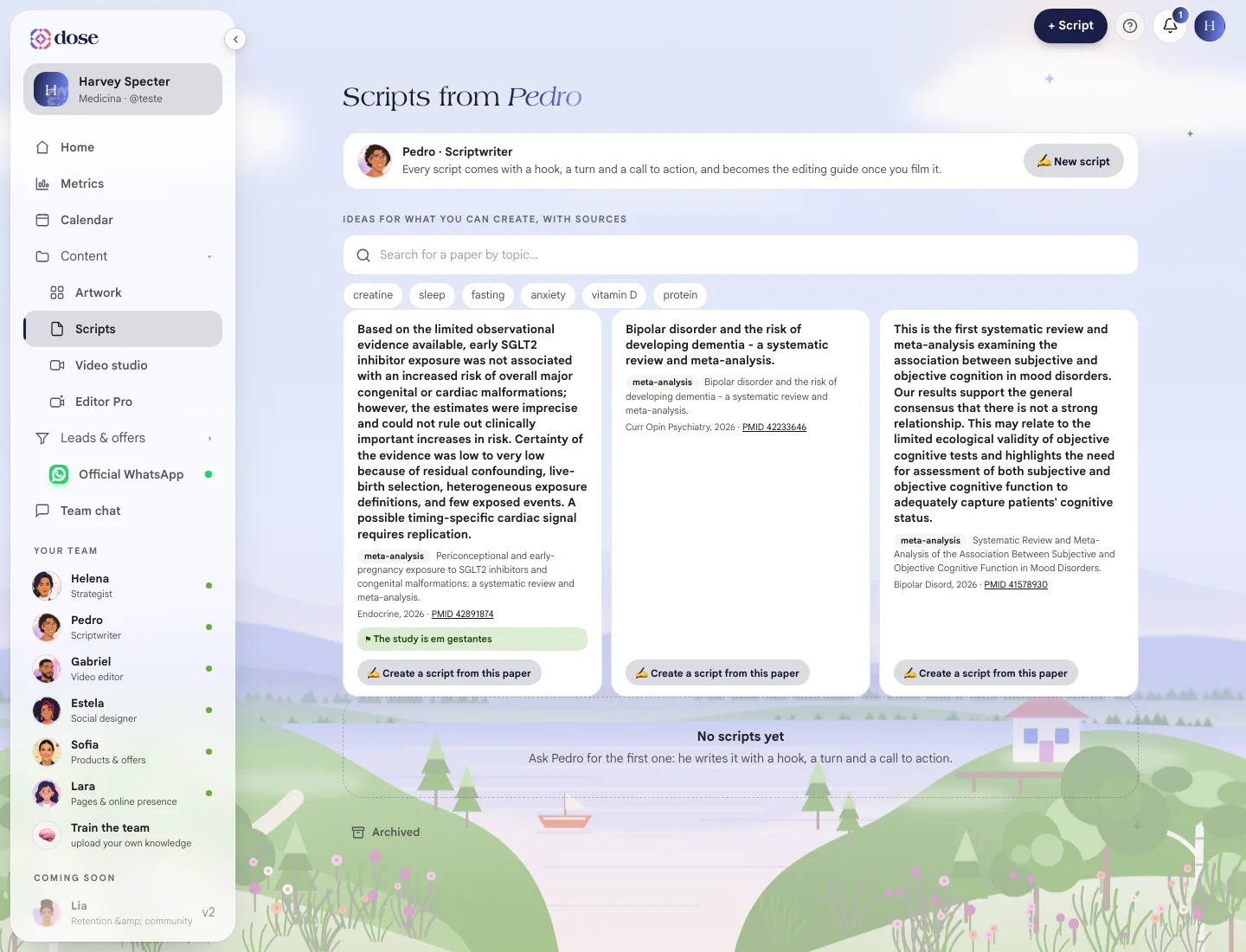
Scripts holds the scripts that Pedro, your team’s scriptwriter, writes for you to film. Every script comes with a hook, a turn and a call to action, and becomes the guide for the edit once you film it.
To open it, click Content in the menu and then Scripts.
Request a script
Section titled “Request a script”There are two ways:
- ✍️ New script — opens Team chat with Pedro, already with the request “I want a new script”. Tell him the topic and he writes it;
- Create a script from this paper — in the ideas from the scientific library, just below. The script starts out backed by that study.
A script uses credits from your plan; the cost shows on the Video script shortcut on Home.
What the script includes
Section titled “What the script includes”Open a script from the list to read it. It comes in parts:
| Part | What it is |
|---|---|
| Hook (first 3 seconds) | The line that stops people scrolling the feed |
| Body | The content, in video language |
| Call to action | The call to action at the end |
| How to film it | Filming tips, when Pedro includes them |
At the top you’ll see the content pillar, the expected length and the status.
The statuses
Section titled “The statuses”| Status | What it means |
|---|---|
| Draft | Pedro wrote it and it’s waiting for your OK |
| Ready to film | You approved it — it just needs filming |
| Being edited | You filmed it and the video is with Gabriel |
| Edited | The video is ready |
Approve or request a change
Section titled “Approve or request a change”- ✅ Approve — the script moves to Ready to film;
- Request a change — opens the chat with Pedro, already quoting the script. Tell him what you want done differently.
Film with the teleprompter
Section titled “Film with the teleprompter”🎬 Teleprompter mode opens the script full screen, scrolling on its own: hook, body and call to action, in sequence (the How to film it tips are left out).
- ⏸ Pause / ▶ Resume — or tap the text, or press the space bar;
- ↺ Top — goes back to the beginning;
- ✕ Exit — or press ESC.
On a computer, the ← → arrow keys change the speed. When it reaches the end, it pauses on its own.
After filming
Section titled “After filming”📹 Filmed it, use in the Studio takes you to the Video studio with this script already picked as the edit’s base script. Gabriel uses the script to decide the cuts.
You can also put the script on the Calendar, on the day you plan to post.
Archive
Section titled “Archive”A script you won’t use can be archived (you can undo it whenever you want) or deleted. Archived scripts live in Archived, at the end of the list, with the Unarchive button.